Last Updated Apr 15, 2026
How to Find and Fix Technical SEO Issues

Technical SEO determines whether your website can appear in search rankings. It’s not about writing better blogs or finding clever keywords because even great content won’t rank if search engines can’t access it. It’s about the backend of your website, the infrastructure that tells search engines how to crawl and index your pages. If that infrastructure is weak, great content won’t save you.
Now, let’s clear the confusion early. Technical SEO is not content strategy, keyword research, backlink building, or analytics interpretation. Those matter, but they live in a different lane. This guide focuses only on the technical layer of how search engines interact with your website at a system level.
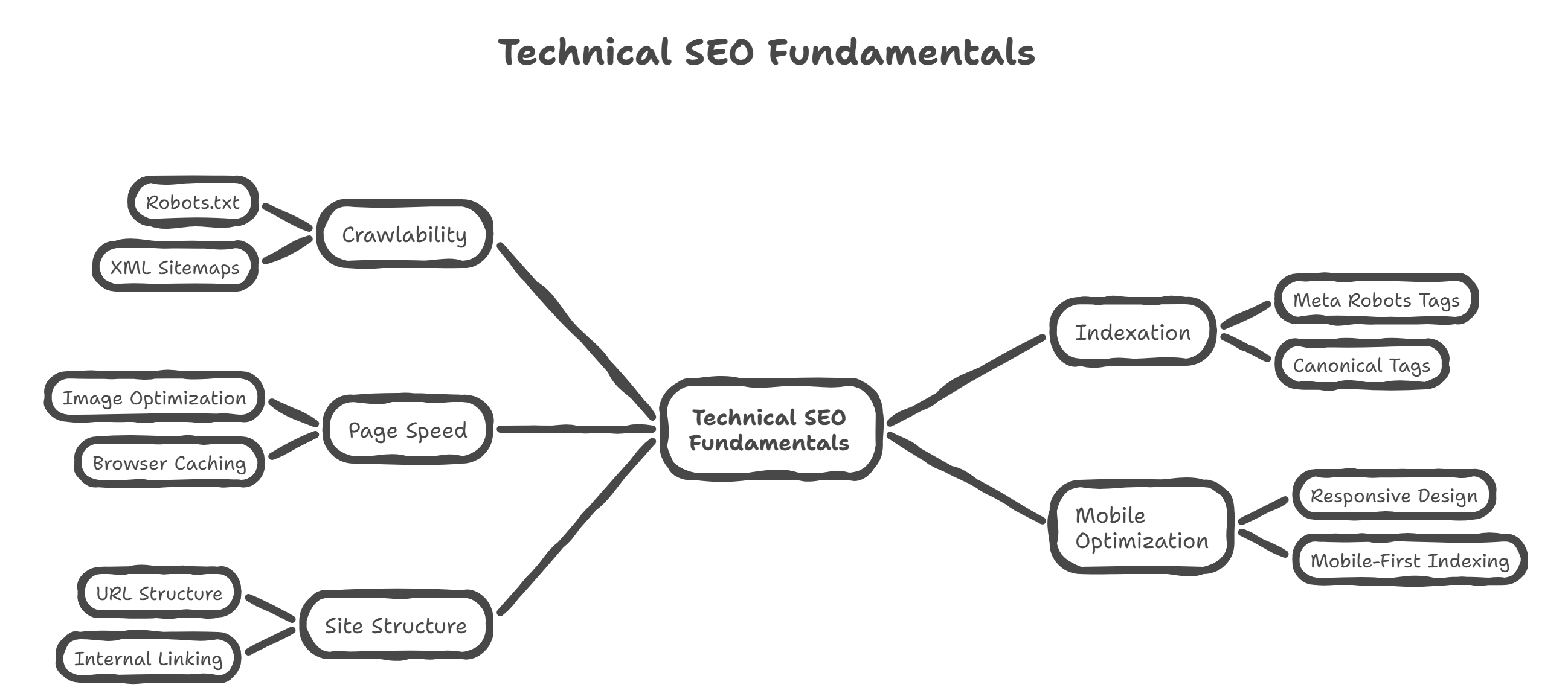
Here’s why this matters. Googlebot, Bingbot, and newer AI search crawlers don’t “see” websites like humans do. They rely on crawlable paths, indexation signals, secure connections, mobile-friendly layouts, and fast load times. When any of those break, rankings slip quietly. There’s no warning or notification, just lost visibility. That’s why this guide walks you through practical checks you can do yourself, no developer required.
Audit your site indexation
Before fixing anything, you need to know whether your site is actually visible in Google Search. This is the fastest technical SEO check I run, and honestly, it catches more issues than fancy tools.
Go to Google Search and type:
site:yourdomain.com
This site: operator shows how many pages Google has indexed from your domain. Look at the number and ask yourself a simple question:
Does this roughly match how many real pages your site has?
If it does, move on. If it doesn’t, there’s an issue with indexation.
When Google shows way more indexed pages than expected, that’s often a red flag. It can mean site-hacking spam, old HTTP versions still indexed, or parameter-based URLs that shouldn’t exist. I’ve seen hacked pages ranking for casino terms without the site owner realizing it.
When Google shows far fewer indexed pages, that’s usually worse. It often points to blocked indexability. Pages might be restricted by robots.txt, tagged with NOINDEX, or removed accidentally during a redesign. Google’s Webmaster Guidelines are clear: rankings don’t happen when bots can’t access or index your pages. This step tells you whether visibility is already broken.
Verify core crawl files
Once you know whether your pages are indexed, the next step is checking the files that guide crawlers around your site. Think of these as road signs for search bots.
First, let’s talk about the XML sitemap. An XML sitemap gives search bots a structured map of your site. It shows which pages exist, how they relate and which matter most. This improves crawl intelligence and helps bots find new or updated pages faster.
To check yours, open a browser and go to:
yourdomain.com/sitemap.xml
When the file loads, that’s a good sign. You should see a list of URLs or sitemap indexes. When it’s missing, outdated, or showing errors, crawlers are flying blind.
Next, check your robots file. Type this into your browser:
yourdomain.com/robots.txt
This file tells bots what they’re allowed or not allowed to crawl. One tiny mistake here can tank organic traffic. A single forward slash matters.
If you see the following configuration:
User-agent: *
Disallow: /
That means every crawler is blocked from the entire site. I’ve seen this happen after staging-site launches more times than I can count. When that line exists, escalate it to a developer immediately because it blocks all crawling. It’s a critical configuration error.
Identify NOINDEX tags
Now that bots know where to go, you need to make sure they’re not being told to ignore your pages.
A NOINDEX tag is a directive that removes a page from search results. It’s useful in specific cases like low-value blog categories, thank-you pages, or internal filters. But when used incorrectly, it wipes pages out of Google completely.
Here’s the common problem: during development, teams often apply NOINDEX sitewide to prevent unfinished pages from ranking. Then launch day comes and the tags stay. Rankings drop because pages are removed from the index, which often triggers panic.
You can check this manually. Go to your homepage, right-click, and select View Page Source. Press Ctrl+F (or Cmd+F) and search for:
<meta name=“robots” content=“NOINDEX”>
When you find it on pages that should rank, that’s the issue. Remove it immediately. This one tag alone can undo months of SEO work, and it’s easy to miss if you don’t look directly at the source code.
Repair broken site links
Broken links (like deleted blog posts or missing product pages) don’t just annoy users, they waste crawl budgets and leak link equity. When bots hit a 404 error, they stop following that path. Over time, important pages get crawled less often.
Internal broken links are the top priority. When a page returns a 404 error, users hit dead ends and search bots wander elsewhere. That weakens user trust and stops authority from flowing through your site.
The fix is straightforward. For internal broken URLs, set up 301 redirects to the most relevant updated page. This preserves link equity and restores crawl paths. When the page should still exist, restore the content instead.
External broken links matter too. When outbound links point to dead resources, your content feels outdated. Either remove the link or replace it with a new authoritative source. Ask: Would I still trust this article if I clicked this link today? If the answer is no, fix it.
Optimize page loading speed
Speed isn’t just about patience, it’s about rankings and crawl efficiency. Research from Google shows that users abandon websites that take longer than 3 seconds to load. That’s more than half your visitors gone before they see anything.
Start with a clear benchmark: aim for pages that load under 3 seconds.
Use Google PageSpeed Insights to test both desktop and mobile versions. The tool doesn’t just score you, it tells you why pages are slow. Look for flagged issues like large images, unused JavaScript, or slow server response instead of chasing perfect scores.
Common fixes that actually move the needle:
- Compress large image files
- Enable browser caching for static resources
- Minify CSS and JavaScript files
One thing people ignore: server response time. When your server takes more than 2 seconds to respond, Google crawlers slow down. That reduces crawl budget, which means fewer pages indexed. When this keeps showing up in reports, it’s usually time to upgrade hosting or switch providers.
Implement mobile responsive design
Google uses mobile-first indexing, meaning it primarily looks at the mobile version of your site to decide rankings. Desktop design no longer leads.
When your mobile experience is weak, rankings suffer even if the desktop looks perfect.
Start with the viewport meta tag. This tells browsers how to scale your page on different screen sizes. Without it, users get tiny text and horizontal scrolling. Check your code for a properly set viewport so pages adapt to device width naturally.
Next, think about touch accessibility. Mobile users don’t click, they tap. Buttons and links that are too close together cause accidental clicks, frustration, and exits. Space tappable elements generously and test them with your thumb, not a mouse.
Ask yourself honestly: Can I use this page easily on a small screen while distracted? When the answer is no, usability needs improvement.
Manage site duplicate content
Duplicate content confuses search engines and splits ranking authority. This is especially common on ecommerce sites, where the same product appears across multiple URLs.
The fix starts with the rel=canonical tag. This tag tells search engines which version of a page is the “original” and should receive ranking credit. Without it, Google guesses, which can lead to the wrong page ranking.
Homepage duplication is another classic issue. Variations like http, https, www, and non-www should never all exist separately. Use 301 redirects to force everything into one standard HTTPS URL. This consolidates link equity instead of spreading it thin.
Filtered URLs and parameter-based pages cause silent duplication too. Color filters, sort orders, and pagination often create endless URL combinations. Use canonical tags to prevent these from being indexed as unique pages. Google Search Console can help spot this problem early, especially for large catalogs.
Conclusion: what to do next
We covered a lot, but every step ties back to one goal: making sure search engines can crawl, index, and trust your website.
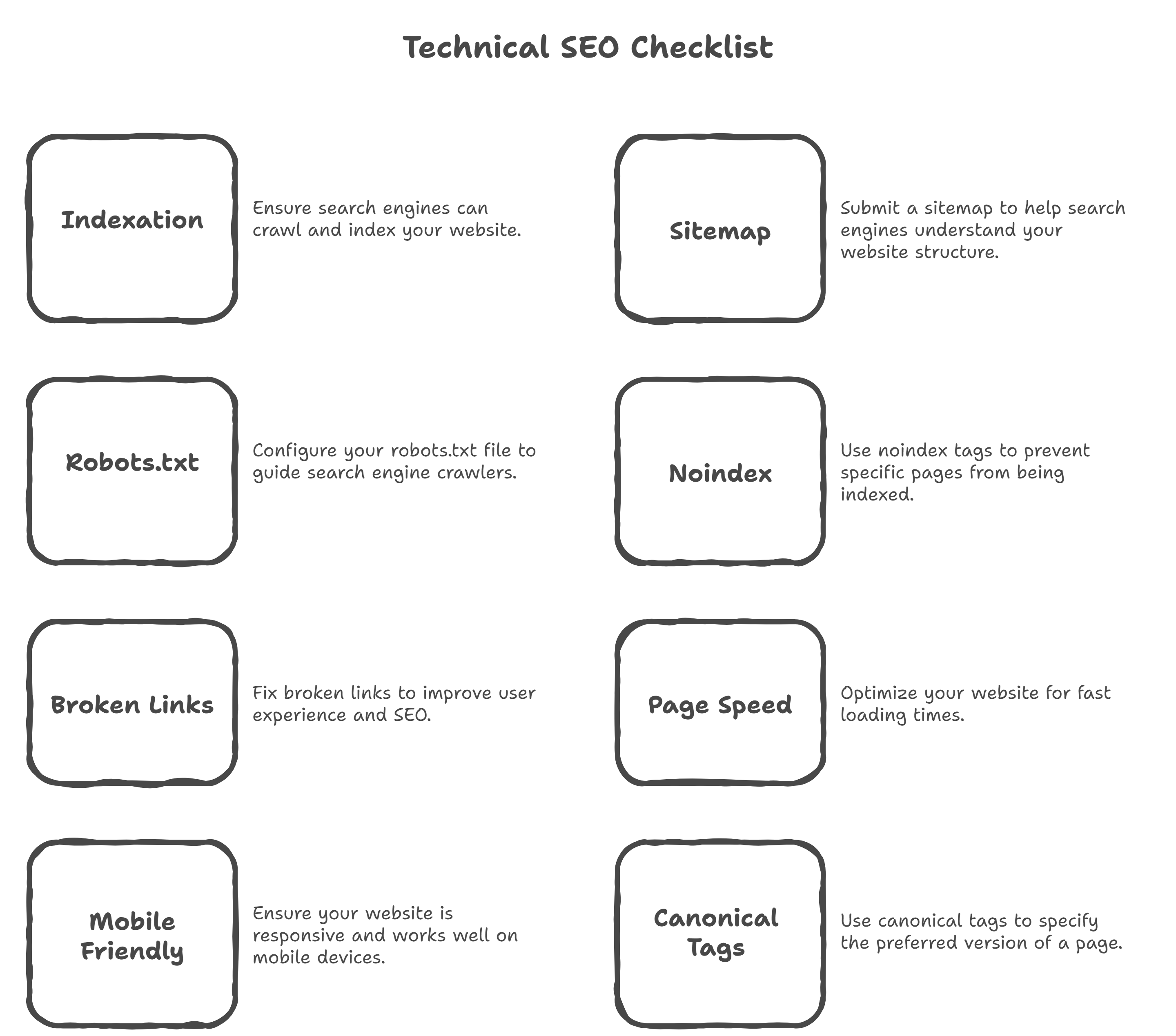
You learned how to:
- Check whether your site is indexed
- Verify crawl files that guide bots
- Catch accidental NOINDEX issues
- Fix broken links before they drain authority
- Improve speed to meet ranking thresholds
- Make your site usable on mobile
- Control duplicate content with canonicals
When even one of these breaks, visibility drops quietly. That’s frustrating because issues happen silently without alerts.
Here’s my recommendation: run this audit once every quarter, and always after a site redesign or platform change. Bookmark this checklist. Use it before panic sets in.
For deeper validation, pair these checks with Google Search Console and PageSpeed Insights; they’re free and brutally honest.
When you’re stuck, investigate the issue immediately. Technical SEO issues don’t fix themselves. Start with indexation, work your way down. Take action the moment something looks off
Read More Articles



Ready to create content with Marktly?
Start publishing smarter with AI-powered content workflows and seamless CMS integrations. Everything you need to go live