Last Updated Apr 15, 2026
SEO Data Architecture in GA4: GSC, Engagement, and Conversions
GA4 confused many users when it launched. Many users open GA4 and wonder where their SEO data went.
The problem isn’t that GA4 is bad. It’s that it works differently.
Instead of sessions and pageviews being the main story, GA4 tracks events like page_view, scroll, or purchase. That shift changes how we measure SEO completely.
In this guide, I’ll walk you through how to build your SEO data setup in GA4 step by step. This guide focuses on practical configuration.
By the end, you’ll know:
- How to see keywords again (yes, it’s possible)
- How to isolate organic traffic properly
- How to check if your content is actually working
- How to connect SEO to leads or revenue
- How to track traffic coming from AI tools like ChatGPT
Why trust this? Because this setup is what most teams miss, and it’s exactly why their GA4 reports feel incomplete.
Integrate Google Search Console
GA4 does not show keyword data by default.
Skipping this step leaves you without keyword visibility.
So we fix that by connecting Google Search Console (GSC).
Steps to connect GSC with GA4
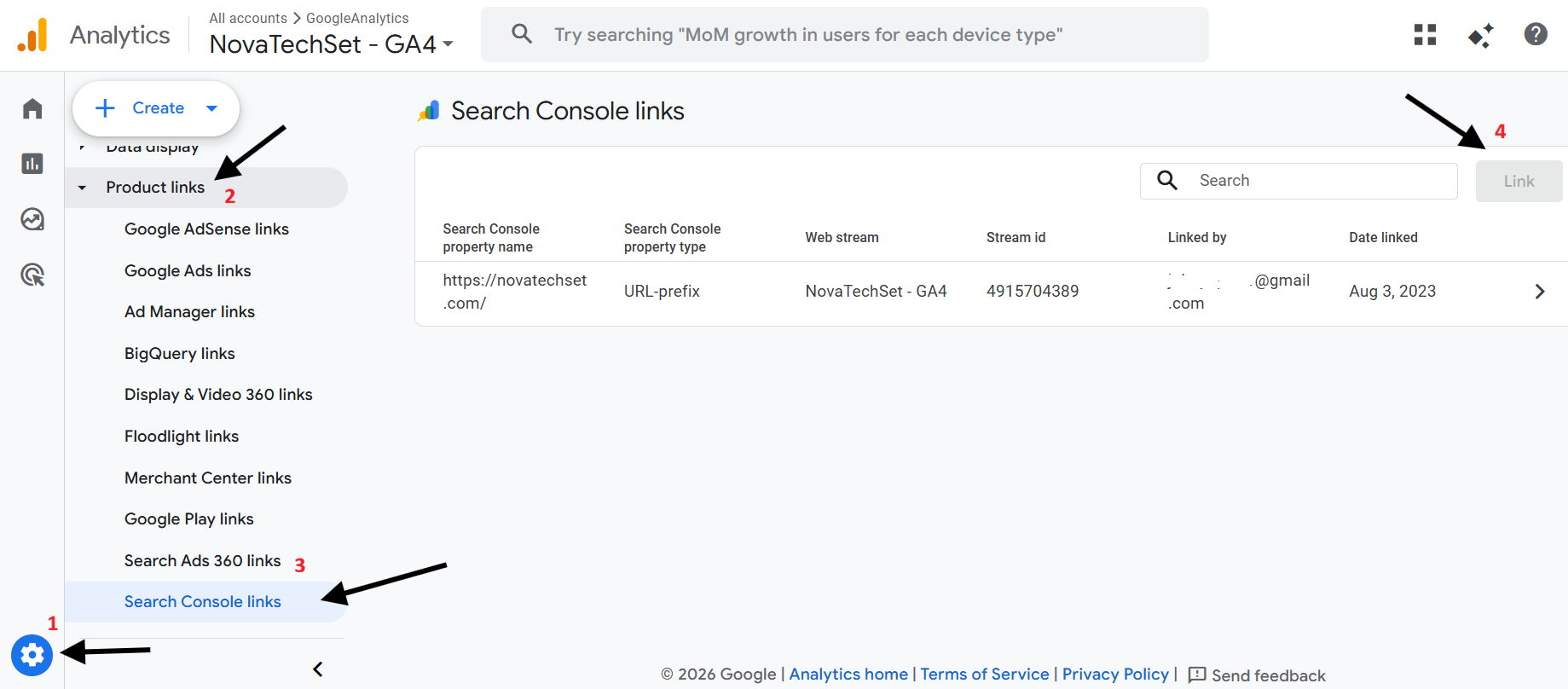
- Go to Admin > Product Links > Search Console Links
- Click Link
- Choose your Search Console property
- Attach it to your GA4 web data stream
No code or development work is required.
After setup:
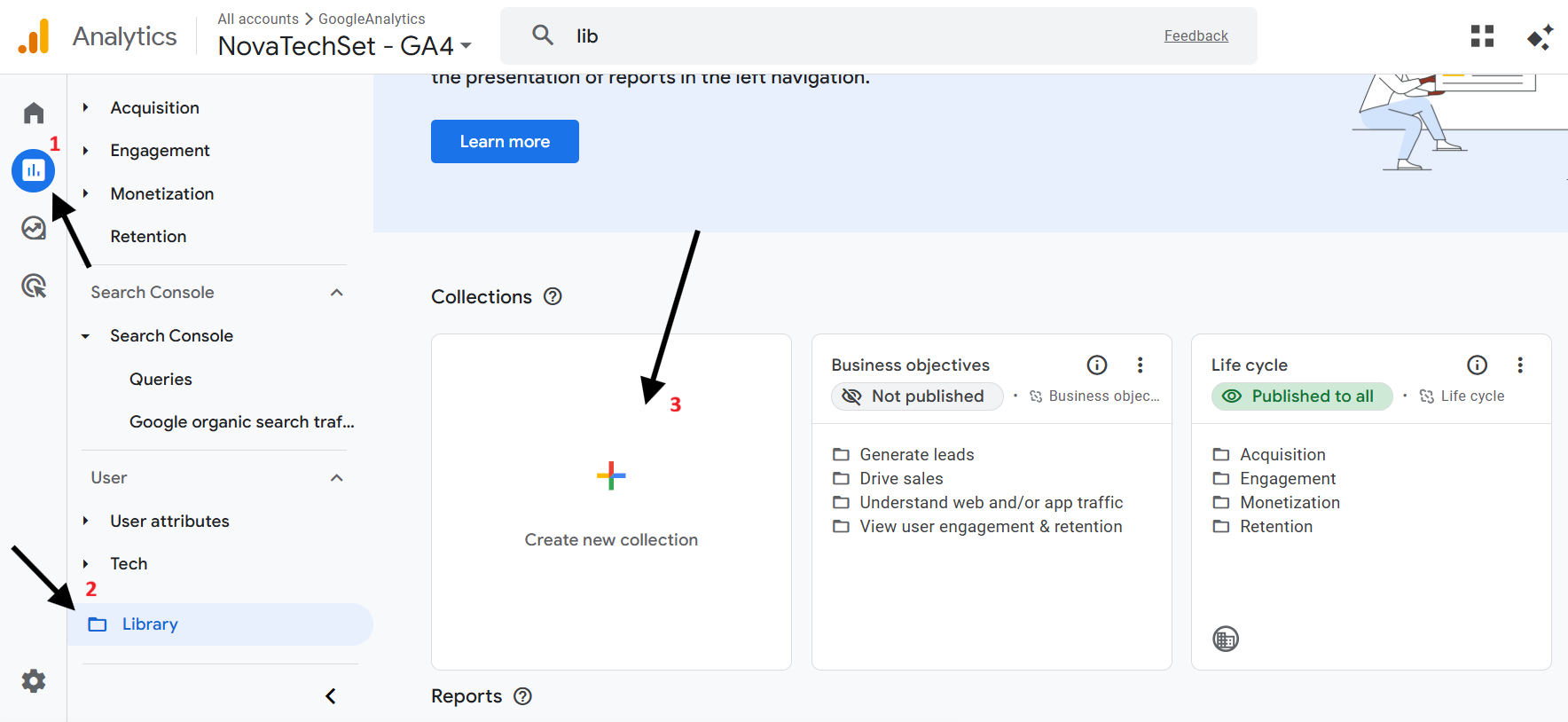
- Go to Reports > Library > Collections
- Publish the Search Console reports
- You’ll see:
- Queries (keywords)
- Organic Google Search Traffic
Data usually shows up within 24 hours.
Why this matters
Without GSC:
- You don’t know what people searched
- You only see what they did after landing
With GSC:
- You connect query → click → behavior
That’s the full SEO picture.
How can you improve rankings without knowing which queries drive traffic?
What should you do next?
Use the Traffic Acquisition report to measure post-click sessions.
Isolate Organic Traffic Acquisition
Now that you have keyword data, the next step is to Separate SEO traffic from everything else.
If you don’t, your numbers will lie to you.
How to isolate organic traffic in GA4
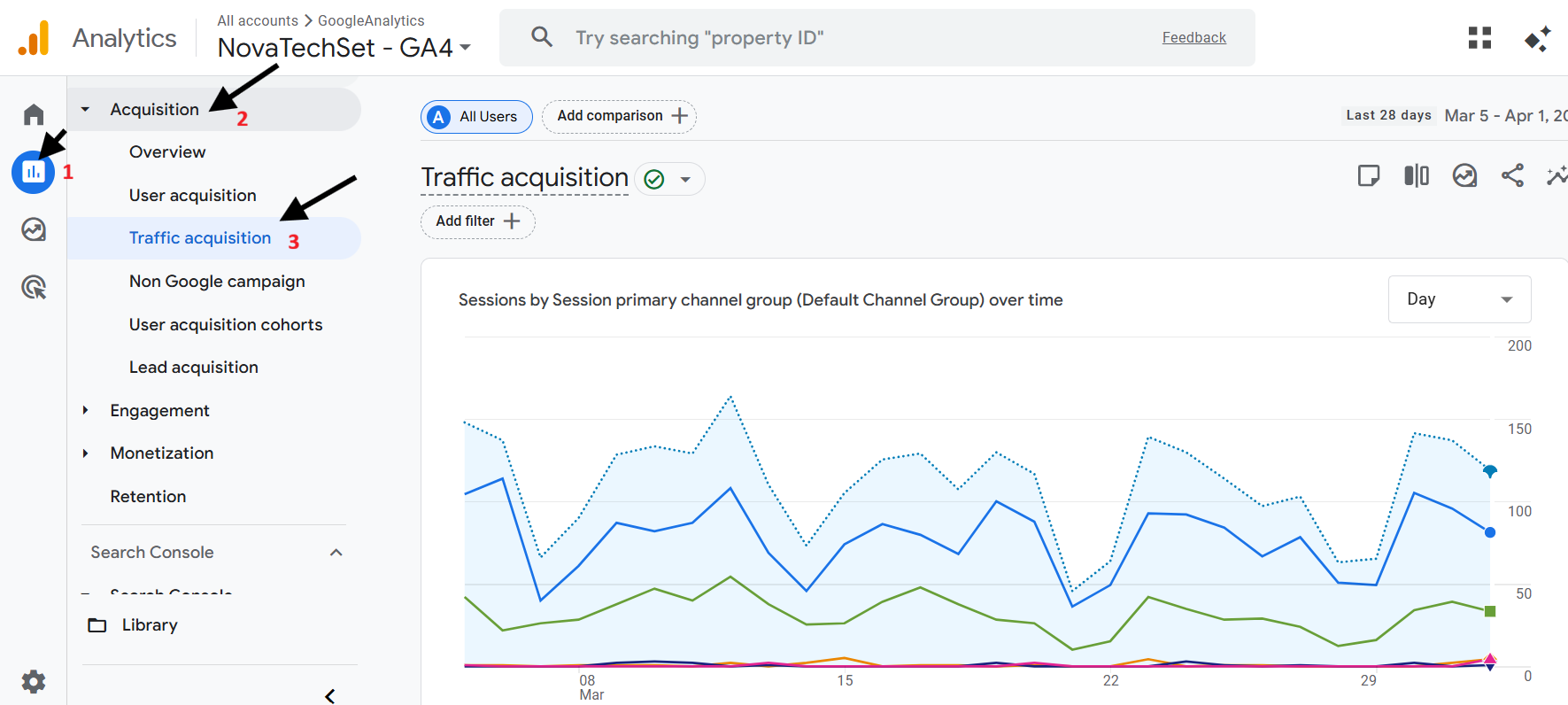
- Go to Reports > Acquisition > Traffic acquisition
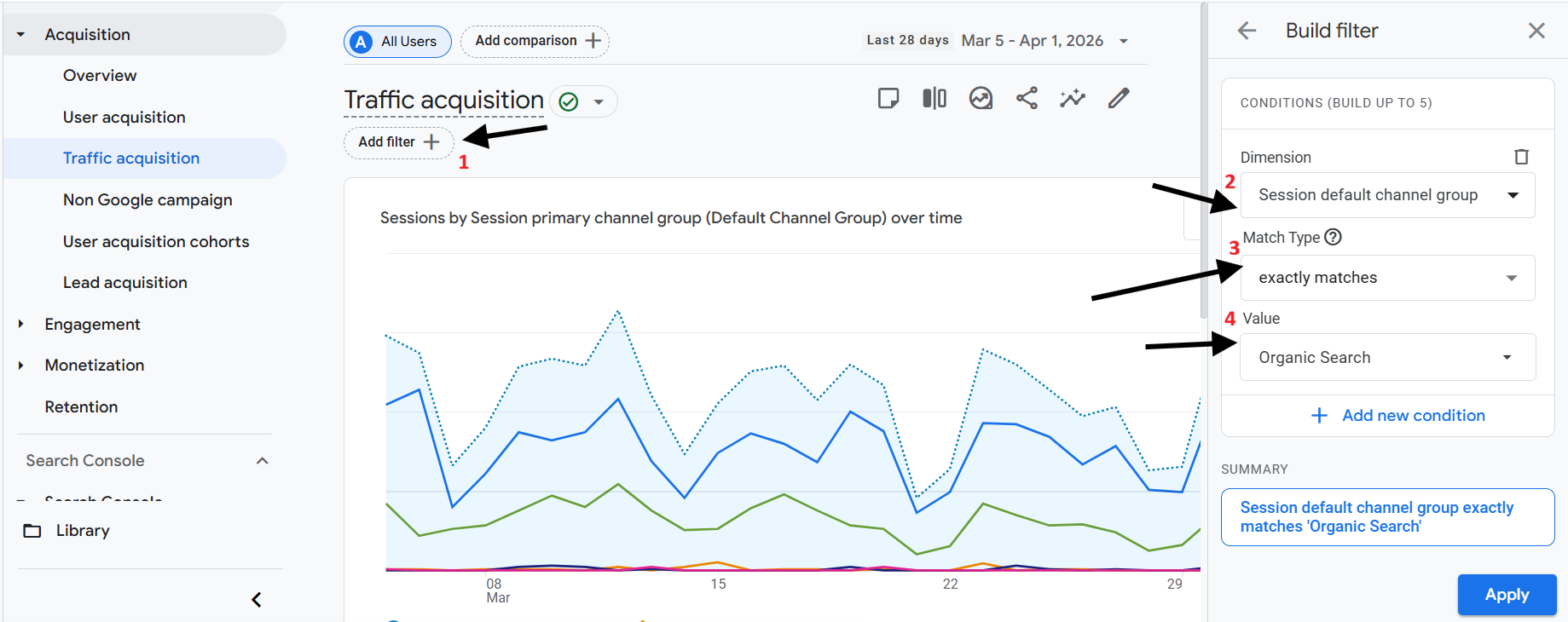
- Set primary dimension to Session default channel group
- Apply filter:
- Condition: exactly matches
- Value: Organic Search
Now your report shows only:
- Organic sessions
- Engagement rate (for SEO users only)
- Conversions from organic traffic
Why this step is essential
Here’s a mistake I see:
People look at overall conversions and assume SEO is working.
But what if:
- Paid ads are doing the heavy lifting?
- Or direct traffic is inflating numbers?
Filtering fixes that.
Now you’re asking the right question:
What is SEO actually doing on its own?
How do you analyze this at the page level?
How to View Traffic Sources for a Specific Page?
This part frustrates many users.
GA4 doesn’t give you a clean report like:
“Show me traffic sources for this one page.”
Step-by-step workaround
- Open Traffic Acquisition report
- Click Add filter
- Choose dimension: Page path and screen class
- Set condition:
- Match exactly (or “contains”)
- Enter your URL path
Example:/blog/ga4-seo-guide - Apply
Now you can see:
- Organic traffic
- Direct traffic
- Referral traffic
- Paid traffic
All for that one page.
Why this is powerful
Let’s say your blog post is getting traffic.
Where does this traffic come from? Is it SEO, LinkedIn, or referrals?
This filter shows the exact source.
This is where SEO analysis becomes actionable.
While aggregate channel data provides a macro view, determining the exact traffic source for a highly specific URL requires a dedicated UI filter. After isolating that data, the next requirement is validating content quality through engagement metrics.
Measure SEO Content Quality via Engagement Metrics
Let’s talk about something people misunderstand:
Bounce rate is not the main metric anymore.
GA4 replaced it with something better engagement.
Key engagement metrics you should care about
- Engaged Sessions
- A session counts if:
- It lasts more than 10 seconds
- OR triggers a conversion
- OR has 2+ page views
- A session counts if:
- Engagement Rate
- % of engaged sessions out of total sessions
- Average Engagement Time
- How long users actually interact with your page
What these metrics tell you
In short:
- High traffic + low engagement = problem
- Moderate traffic + high engagement = opportunity
Why?
Because engagement shows intent match.
A quick exit after a click signals a mismatch:
- Wrong keyword targeting?
- Weak intro?
- Slow page?
A quick way to audit your SEO pages
Ask yourself:
- Are users staying at least 10–30 seconds?
- Are they scrolling?
- Are they clicking anything?
Otherwise, your content may rank but fail to perform.
This can be difficult to accept.
High engagement validates content quality, but calculating business impact requires mapping those engaged organic sessions to Key Events.
Map Organic Traffic to Key Events (Conversions)
Traffic alone doesn’t generate revenue.
Is SEO driving results?
Which conversions come from organic traffic?
That’s where conversions (key events) come in.
How to mark conversions in GA4
- Go to Admin > Events
- Find events like:
form_submitgenerate_leadpurchase
- Toggle Mark as conversion
Done.
Now connect it to SEO
Go back to: Traffic Acquisition report → filter Organic Search
Now check:
- Conversions
- Session conversion rate
- Revenue (if ecommerce)
What you can measure now
- How many leads came from SEO
- Which pages drive conversions
- Which keywords indirectly lead to revenue
This is where SEO stops being “just traffic” and becomes business impact.
This is the data stakeholders care about.
Beyond traditional search engines, tracking bottom-line impact must now account for emerging traffic from AI recommendation engines.
Track Emerging AI Referral Traffic
Here’s something most guides often overlook: You’re already getting traffic from AI tools.
ChatGPT, Perplexity, Gemini send users to websites.
But GA4 groups them under Referral.
So you can’t see them clearly unless you configure it.
How to create an AI referral channel in GA4
-
Go to Admin → Data Settings → Channel Groups
-
Click Create new channel group
-
Click Add new channel
-
Set:
- Channel name: AI Referrals
-
Under Define channel rules, configure:
- Dimension: Session source
- Match type: matches regex
- Value:
(chatgpt\.com|openai\.com|perplexity\.ai|poe\.com|bard\.google\.com|gemini\.google\.com)
-
Save the channel
-
Save the channel group
-
Apply it in reports
What this unlocks
Now you can track:
- Traffic from AI tools
- Engagement of those users
- Conversions from AI referrals
Why this matters
Search behavior is changing.
People don’t Google anymore; they ask AI.
Ignoring this creates a blind spot:
- You’ll miss early trends
- You’ll underreport traffic sources
- You’ll misread SEO performance
This creates risk.
Summary Architecture
Let’s quickly pull everything together.
Your GA4 SEO setup should look like this:
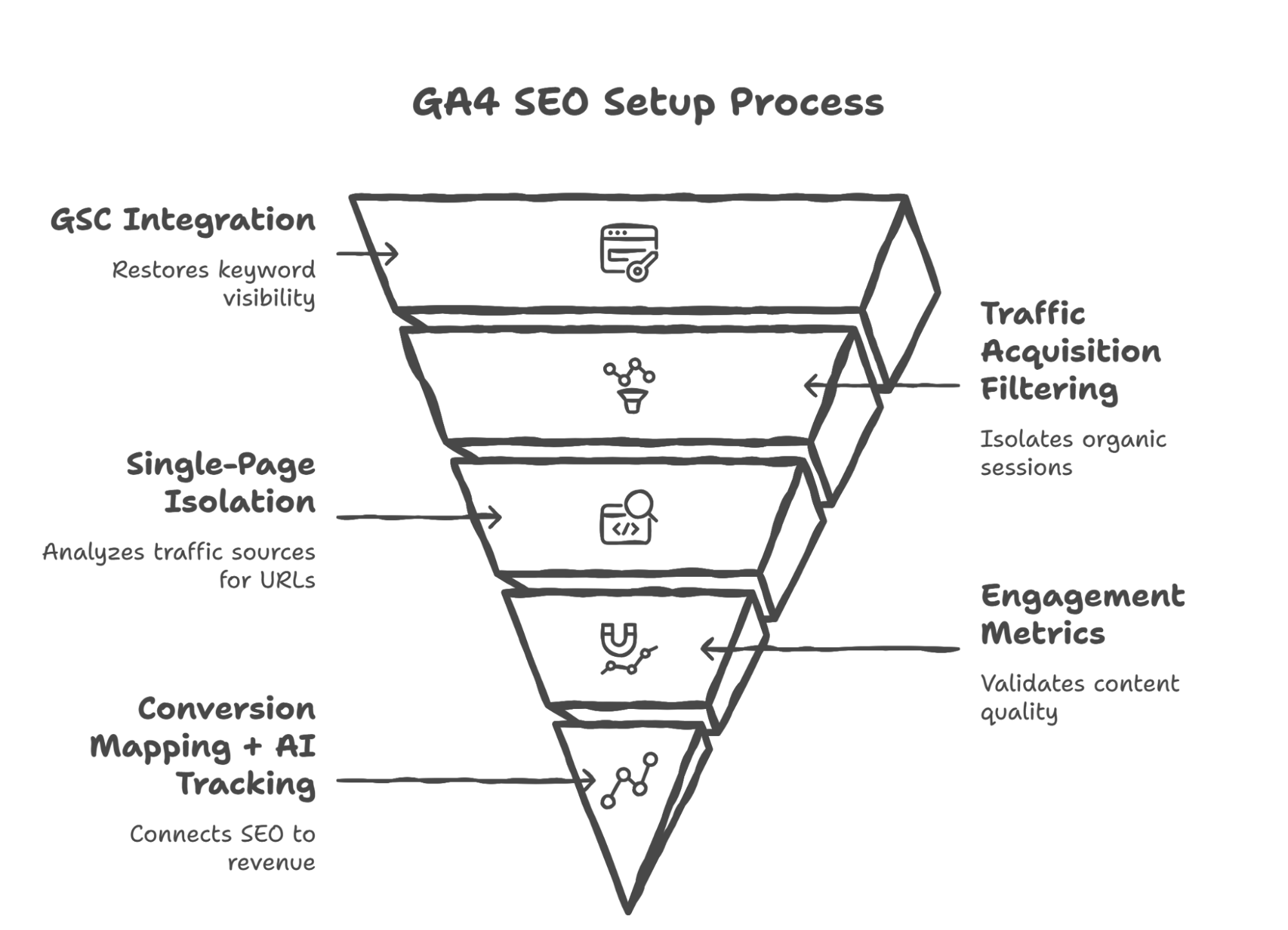
- GSC Integration
→ Restores keyword visibility (queries, clicks, impressions) - Traffic Acquisition Filtering
→ Isolates organic sessions cleanly - Single-Page Isolation
→ Lets you analyze traffic sources for any URL - Engagement Metrics
→ Validates content quality and intent match - Conversion Mapping + AI Tracking
→ Connects SEO to revenue and future traffic sources
Final thoughts (what you should do next)
GA4 feels incomplete when it isn’t fully configured.
That’s the shift:
GA4 doesn’t give answers. It gives building blocks.
And you assemble them.
Next steps:
- First, link your Search Console (don’t delay this)
- Then filter organic traffic properly
- Pick 3–5 pages and analyze engagement
- Set up at least one conversion event
- And finally, track AI referrals before it becomes mainstream
Completing these steps already puts your SEO reporting ahead of most teams.
If you get stuck, go step by step instead of trying to solve everything at once.
Read More Articles


Ready to create content with Marktly?
Start publishing smarter with AI-powered content workflows and seamless CMS integrations. Everything you need to go live